
Using the flood warning map
This guide explains how to use the flood warning map to find your location, view warnings, and understand what they mean.
Find a location
Use the Find address or place search box at the top of the map to find a location.
- Enter a postcode, town, or place name
- Select a result from the list to zoom to that area
- Or select “Use current location” to zoom to where you are (your device may ask for permission)
Accessibility tip: If you are using a screen reader, navigate to the search field and type your location. Results will appear in a list you can move through using arrow keys.
Move around the map
You can explore the map using these controls:
- Click and drag the map to move around
- Use the + and – buttons to zoom in and out
- Use your keyboard:
- Tab to select map controls
- Press Enter to activate them
- On a mobile or tablet:
- Drag with your finger to move
- Pinch to zoom
Accessibility tip: If you cannot use a mouse or touch gestures, use the zoom buttons and ‘Home’ button to control the view.
View flood warnings and alerts
Flood warnings and alerts are shown as triangle symbols on the map.
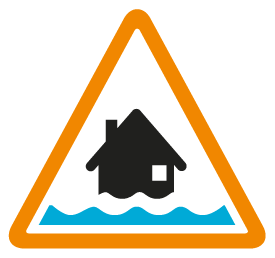
Flood Alert – Flooding is possible – Be prepared
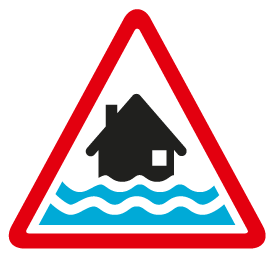
Flood Warning – Flooding is expected – Immediate action is required
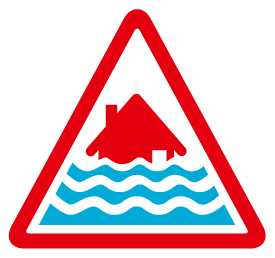
Severe Flood Warning – Severe flooding is expected – Danger to life
You can find out more about what flood alerts and warnings mean
View detailed information
When you click a warning symbol, a panel opens on the right. This panel shows:
- The type of warning (for example, Flood Alert Area)
- The location name
- The start time and update time
- A full message with advice and guidance
You can also click ‘Zoom to’ to centre the map on that area.
Accessibility tip:
- The information panel can be read using a screen reader
- Use keyboard navigation to move through headings and text
Map control tools
The left-hand panel lets you control what appears on the map:
- Zoom (+ / –) – zoom in and out
 Expand button – show layers panel
 Collapse button – hide the layers panel
 Target icon – zoom to your current location
 Home icon – return to the default map view
Show or hide layers
Opening the expand icon on the left lets you control what is shown on the map.
You can use the eye icon to show or hide each layer.
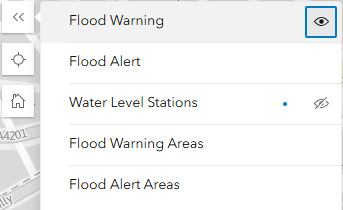
Accessibility tip: All controls should be reachable using the keyboard. Look for visible focus outlines when navigating.
The map layers available are:
- Flood warnings - community for which a flood warning has been issued
- Flood alerts - the regional area for which a flood alert has been issued
- Flood warning areas - the extent of the community risk or those who might be impacted
- Flood alert areas - the extent of the regional risk
- Water level stations - a location that SEPA monitor water levels (river or sea)
Tips for using the map
- Click symbols to see the latest details and safety advice
- Check the update time in the information panel
- Turn layers on or off to make the map clearer
- Use ‘Zoom to’ for a closer view of a warning area